How to Generate AI Girl Videos & Images with Xeve.ai (Guide)
Some links are affiliate links. If you shop through them, I earn coffee money—your price stays the same.
Opinions are still 100% mine.
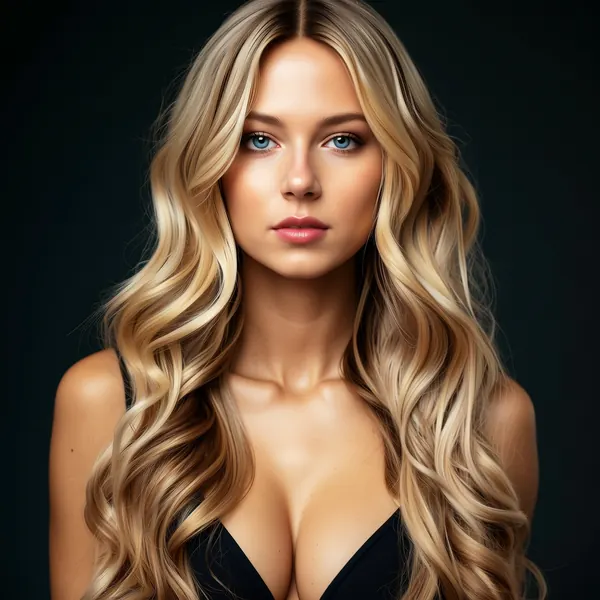
Hey everyone, Patrick here. I’ve spent years exploring the fascinating world of AI, watching it evolve from simple chatbots into something far more personal and immersive. Recently, I've been diving deep into AI companion platforms, and one has completely blown me away: Xeve.ai. Why? Because it goes beyond static images and lets you generate incredible, lifelike videos of AI girls, and even chat with them live on video.
If you've ever been curious about creating your own virtual companion or just want to experiment with a next-level AI video generator, you're in the right place. Today, I’m pulling back the curtain to show you exactly how to create your own AI girlfriend videos and images on Xeve.ai, complete with the pro tips and tricks I’ve learned to get jaw-dropping results.
The AI Girlfriend Trend: More Than Just a Chatbot
The concept of AI companions has exploded in popularity, offering a unique blend of entertainment, creativity, and a non-judgmental space for conversation. Platforms are evolving rapidly, moving beyond text to create truly multi-sensory experiences. This viral trend, which we've covered in our review of the best AI girlfriend apps, highlights a growing desire for more dynamic and visual digital interactions.
What Makes Xeve.ai a Game-Changer?
So, what exactly is Xeve.ai? Think of it as a creative studio for your AI companion. It’s a platform where you can not only chat with an AI girlfriend but also bring her to life visually. Its standout feature, and the reason it’s my current favorite, is the ability to generate short, high-quality videos. This, combined with its live AI video chat, sets it far apart from other apps that are limited to text and still images.
The magic happens on the xeve.ai/generate page, where you become the director of your own digital scenes.
-DBD451dO.webp)
How to Create Your AI Girlfriend Video: A Step-by-Step Guide
Ready to create something amazing? The process is surprisingly intuitive once you know the steps. Follow this guide to go from a simple idea to a stunning video or image.
Step 1: Navigate to the Generation Hub
Once you've logged into Xeve.ai, head directly to the "Generate" page. This is your creative canvas where all the action takes place.
Step 2: Select Your Format and Character
At the top of the page, you'll first need to decide if you want to create an Image or a Video. Then, select the AI character you want to feature. You can choose from a library of pre-made models or, for consistency, select a custom AI character you've already been chatting with. This ensures she always has the same look across all your creations.
Step 3: Write a Detailed, Descriptive Prompt
This is the most crucial step. Your prompt is the direct instruction you give the AI. Vague prompts lead to generic results. Specificity is your best friend. I learned this the hard way—my first prompt was just "a girl smiling," and the result was flat and boring. The magic happened when I got specific.
- Instead of: "A girl in a cafe."
- Try: "A beautiful woman with long, flowing auburn hair and green eyes, smiling warmly in a sun-drenched Parisian café, holding a coffee cup, cinematic style, soft morning light, shallow depth of field."
Step 4: Customize the Scene and Action
This is where you put on your director's hat. Xeve.ai gives you a powerful set of tools to fine-tune every aspect of your video:
- Focus of the Video: Choose from
Close-up,Medium shot, orFull bodyto frame your character perfectly. - Camera Movement: This adds life to your video. I love using
Slow panorSlow zoomto create a dramatic, cinematic feel. - Main Action: What is your character doing? Select from a huge list of actions like
Dancing,Posing,Playing with hair,Winking, orWalking towards the camera. - Emotion: Set the mood of the scene. Is she
Confident,Playful,Shy, orFlirty? - Visual Style: Define the overall aesthetic. Choose a style that fits your vision, such as
Photorealistic,Cinematic,Fantasy Art, or evenAnime-like.
Step 5: Generate, Review, and Refine
Hit the "Generate" button and watch the AI bring your vision to life. It usually takes a minute or two. Don't be discouraged if your first few attempts aren't perfect! The key is to experiment. If the video isn't quite right, go back and tweak your prompt, adjust the camera movement, or try a different emotion. Each small change can have a big impact on the final result.
The Anatomy of a Perfect Prompt: My Pro Tips
Getting the prompt right is an art form. After countless generations, I’ve found that structuring my prompts with a few key components gives me the best results every time.
| Component | Description | My Example |
|---|---|---|
| Persona | Who is your character? Define her look and personality. | "My cheerful girlfriend, a stunning redhead with freckles..." |
| Action | What is she doing? Be specific and active. | "...is dancing playfully in the rain." |
| Setting | Where is she? Paint a picture of the environment. | "On a cobblestone city street at night, with neon lights reflecting on the wet pavement." |
| Style | How should it look and feel? Define the artistic direction. | "Photorealistic style, 8K, full-body shot, slow-motion, joyful emotion, cinematic lighting." |
Your Pre-Generation Checklist
Use this quick checklist before you hit "Generate" to ensure you've covered all your bases:
- Format Chosen: Image or Video?
- Character Selected: Pre-made or custom?
- Prompt Written: Is it detailed and descriptive?
- Scene Set: Camera focus and movement selected?
- Mood Defined: Main action and emotion chosen?
- Style Picked: Aesthetic locked in (e.g., Photorealistic)?
- Ready to Generate: Let's go!
About The Author

Diving into Xeve.ai has been an incredible creative journey. The ability to generate not just images but full-motion videos of an AI companion you’ve designed is a true game-changer. It’s a glimpse into the future of digital interaction and personal expression.
Whether you're looking for a virtual friend, a powerful tool for digital art, or just a fun way to explore the cutting edge of AI, I can’t recommend it enough. Give it a try and see what you can create.
Happy generating!
— Patrick
April 9, 2026
Want to learn more? See How image and video generation works, Pricing: memberships vs credits, and FAQ and glossary.